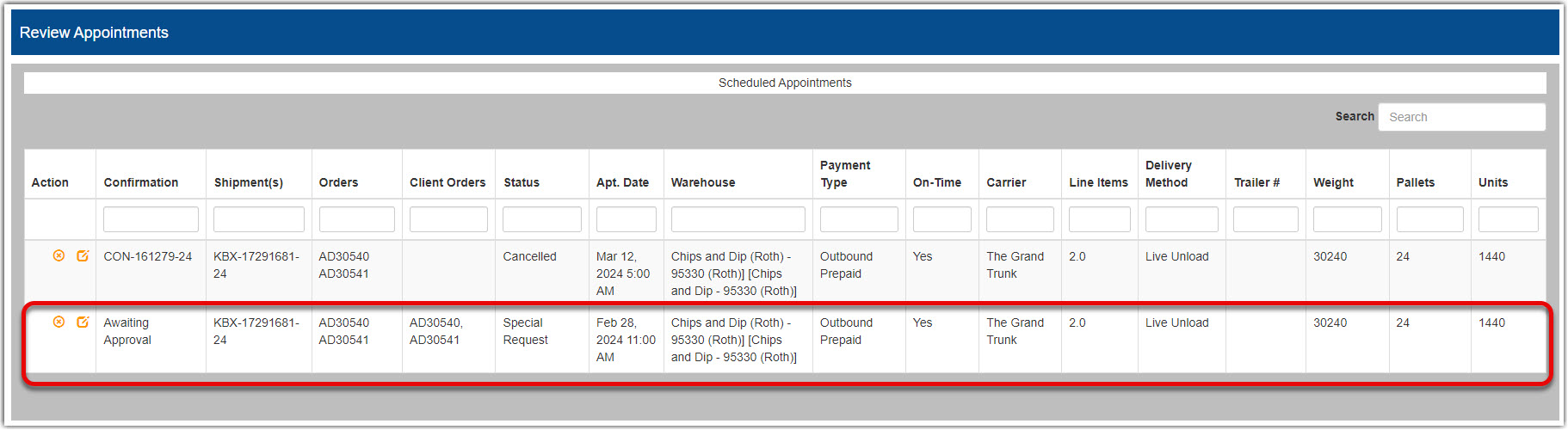
In Dock Scheduler, if your desired appointment is not available when you click Get Times, click the Special Request button to request a different time.
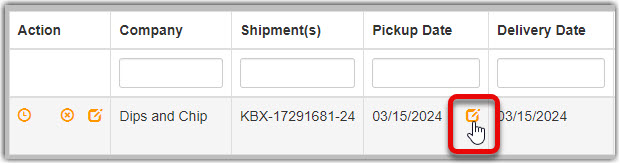
- Orders that allow for changes to appointment dates will have an Edit icon next to the date. Click the Edit icon next to the date.
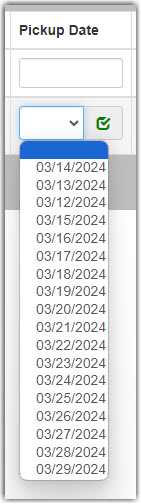
- Select the desired date and then click on the green checked box to confirm the new date.
- If your desired time is available, follow the steps to schedule an appointment by clicking the clock icon, selecting a time and then clicking Schedule.

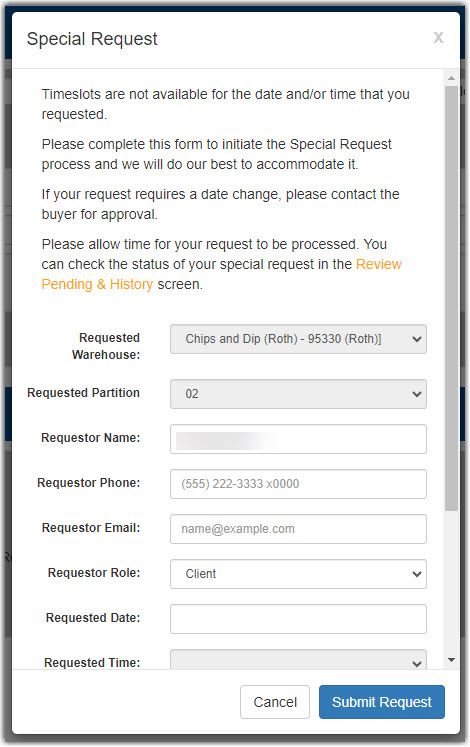
- If your desired time is not available or no times are available at all, you can submit a special request by clicking the Special Request button.

- Fill out all fields on the form and then click Submit Request.
- The special request will now show in Review Pending and History until it is either approved or rejected.